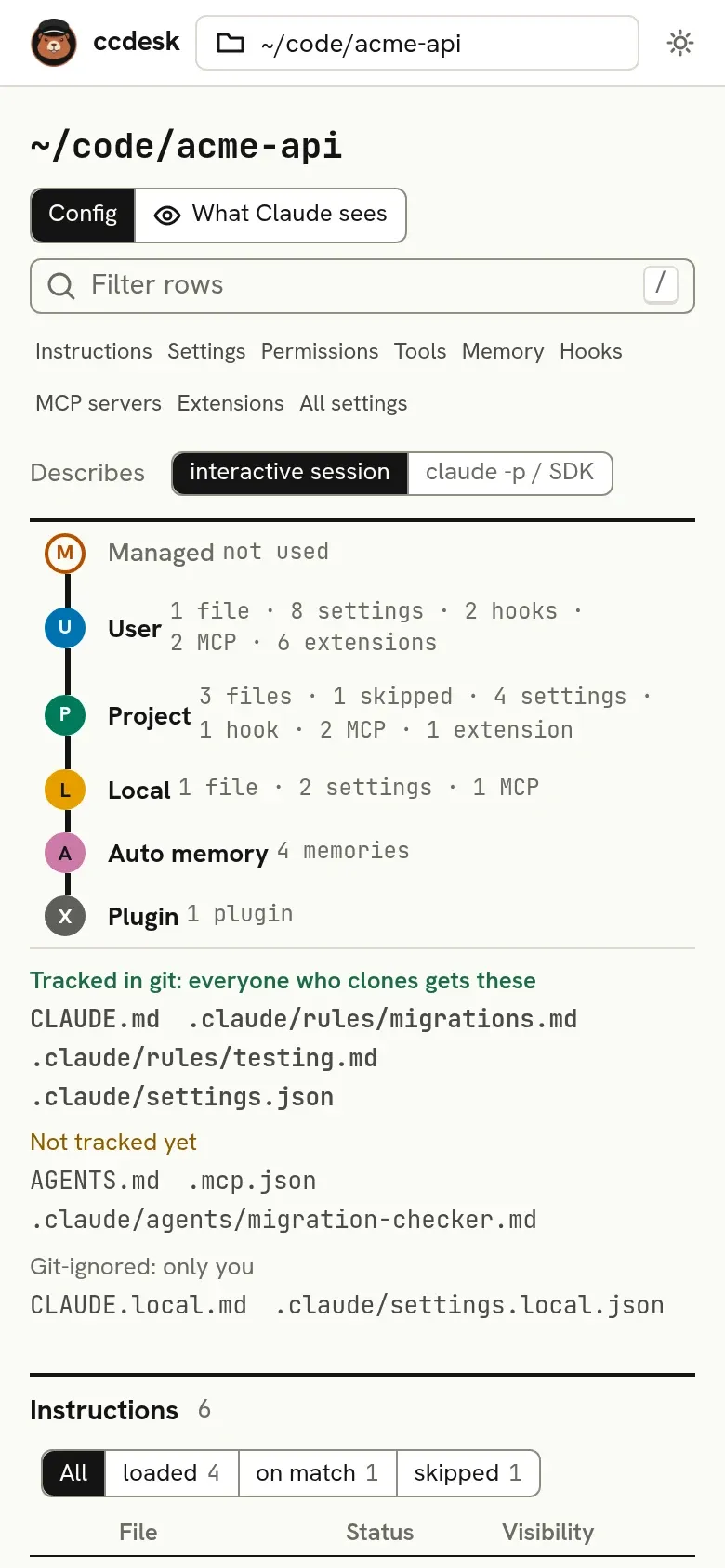
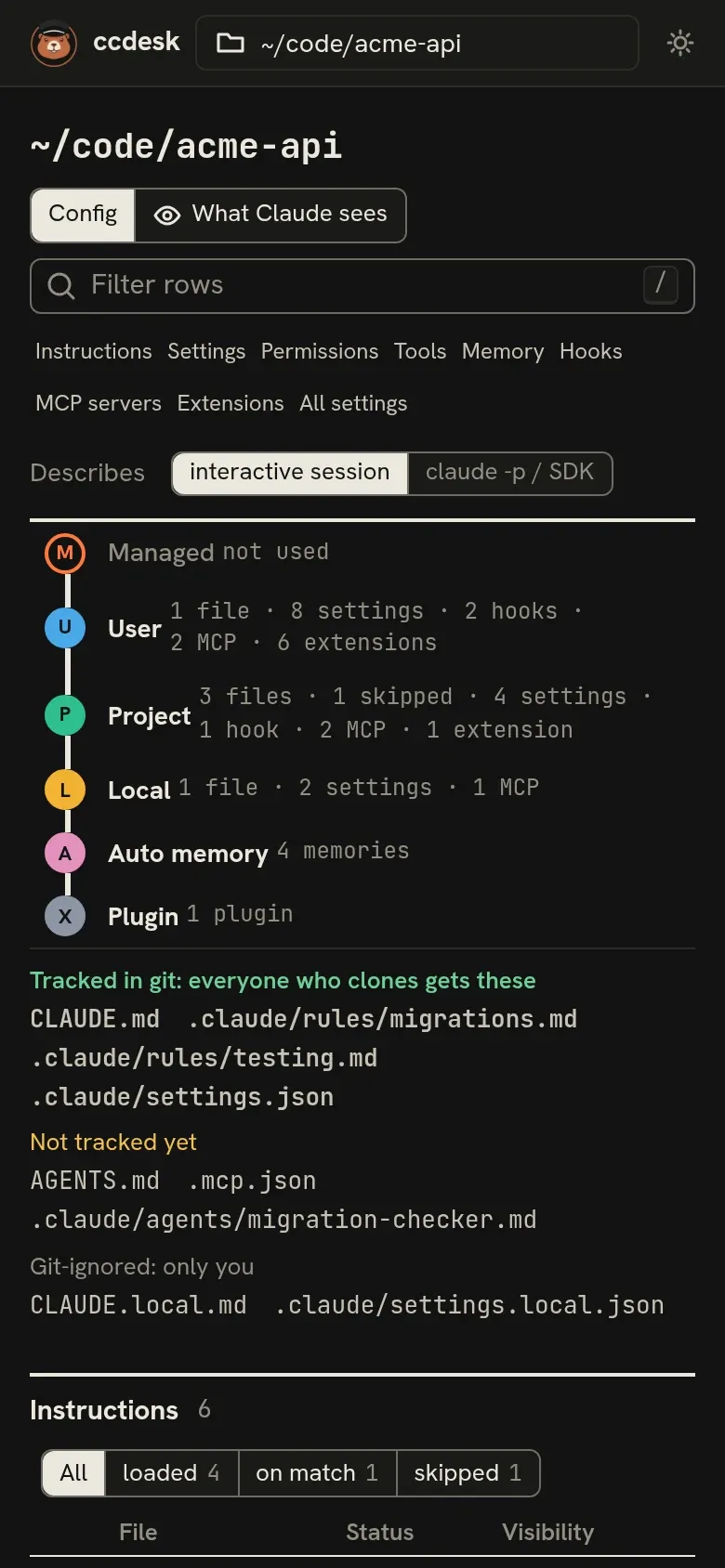
Reading the interface
A directory page answers one question: what is Claude told here, and where does each piece come from? Everything on it is laid out around Claude Code’s load order.
The switch under the page header picks the kind of session the page describes. interactive session, the default, is a claude you type into. claude -p / SDK is a scripted run, which never shows the trust dialog. In a folder you have not trusted, that changes three verdicts:
- hooks from settings files run;
.mcp.jsonservers connect without approval, unlessdisabledMcpjsonServersrejects them. The SDK loads them only when itssettingSourcesinclude project settings;- an untracked
.claude/settings.local.jsonapplies, and so doesautoMemoryDirectoryfrom project or local settings.
Allow rules and extra folders from .claude/settings.json, or from a local file tracked in git, still wait until you trust the folder in an interactive session. The choice is kept in the address as profile=print, so a reload or a shared link keeps it.
A directory that no longer exists is struck through and kept in the rail’s Deleted folders group, folded until you open it. All directories leaves it out until you switch its table from On disk to All. Its page starts by saying the folder no longer exists and whether its auto memory is still saved. The tables show what still applies from your user and managed files, and the editors offer only your user files, since writing the folder’s project or local files would create it again. A local MCP server of that folder cannot be changed from ccdesk, because Claude Code changes one from inside its folder.
Claude Code keeps a store for every directory it ran in, under ~/.claude/projects, with the sessions and auto memory, and it never removes one. Forget this directory… on that notice, or Forget… on a row marked folder gone in All directories, clears one away. The review lists the store folder, its sessions, memories and size. Forgetting moves the store into ccdesk’s backup folder, then opens All directories, where the directory is no longer listed; Recent changes can move it back. The directory ccdesk was started in cannot be forgotten, and neither can one whose folder exists again when you press the button. Claude Code names a store after its directory with every character but letters and digits turned into a dash, so my.app and my-app share one; ccdesk refuses to forget a store that another directory still on disk uses, including a repository whose auto memory is kept there because Claude Code ran in one of its subfolders. It also refuses when it cannot tell whether the folder exists, such as behind a folder you cannot open. A folder on a drive that is not connected looks gone, so connect the drive instead. The review warns when a session was written there in the last few minutes, since a Claude Code still running in the deleted folder would start a new store with its next message.
ccdesk does not change ~/.claude.json, so the directory’s entry there stays, with your trust answer and any local MCP servers. A directory known only from that entry, with no sessions or memory, is not listed once its folder is gone. If the folder comes back and you use Claude Code there again, Claude Code starts a new store and the directory is listed again.
The route strip
Section titled “The route strip”The line across the top is the load order for this directory, one stop per scope:
| Stop | Letter | What comes from it |
|---|---|---|
| Managed | M | Files your organisation installs, such as managed-settings.json |
| User | U | Your own ~/.claude files, for every project |
| Project | P | Files in the repository, such as CLAUDE.md and .claude/settings.json |
| Local | L | Your personal files for this project, such as CLAUDE.local.md and .claude/settings.local.json |
| Auto memory | A | Memory files Claude Code saved for this directory |
| Plugin | X | Enabled plugins. This stop appears only when at least one plugin is enabled |
Each stop lists what it contributes (“1 file · 8 settings · 2 hooks”). A stop that contributes nothing has a hollow bullet. Click a stop to show only the rows from that scope; click it again to show everything.
Every row in the page starts with the same lettered bullet, so you can see where it came from before reading anything else. A hollow bullet on a row means the file is there but not in force: a skipped instruction file, an ignored setting, a value that a higher file beats.
The sharing strip
Section titled “The sharing strip”If the directory is in a git repository, a strip under the route says which of the project’s Claude files are tracked in git (everyone who clones gets them), not tracked yet, or git-ignored (only you have them).
Sections
Section titled “Sections”Below the strips, each kind of config has its own table. The numbers are the keys that jump to each one:
- Instructions
- Settings
- Permissions
- Built-in tools, covered under Permissions
- Memory
- Hooks
- MCP servers
- Agents, skills & plugins: Subagents and Skills, commands, output styles and plugins
- All settings
Every table can be filtered with the box at the top, narrowed with the chips beside its title, and sorted by clicking a column heading. Long tables show 50 rows at a time, with a button for the next 50. The filter text, the scope you picked on the route strip, sorting and chips are kept in the address, so a reload or a shared link opens the same view. Opening another directory starts it unfiltered.
Config and What Claude sees at the top switch between these tables and the view of what loads into context. See What Claude sees.
The inspector
Section titled “The inspector”Click a row to open it in the inspector on the right: why it is or is not in force, the file it comes from (with copy and open buttons), the file’s contents, and the controls to change it. For a Markdown file, Read renders it without its frontmatter, and Raw shows the file exactly as written. Until you pick a row, the tables take the full width. On windows 1180 pixels wide or narrower, the inspector slides in over the page instead.
The open button starts your editor. ccdesk uses $CCDESK_EDITOR when it is set. Otherwise it tries $VISUAL and $EDITOR if they name a graphical editor, then the first of code, cursor, zed, codium, subl, kate, gnome-text-editor and gedit found on your PATH, and finally your system’s default app. Terminal editors such as vim are skipped, because a background server has no terminal to run them in.
Jump to anything
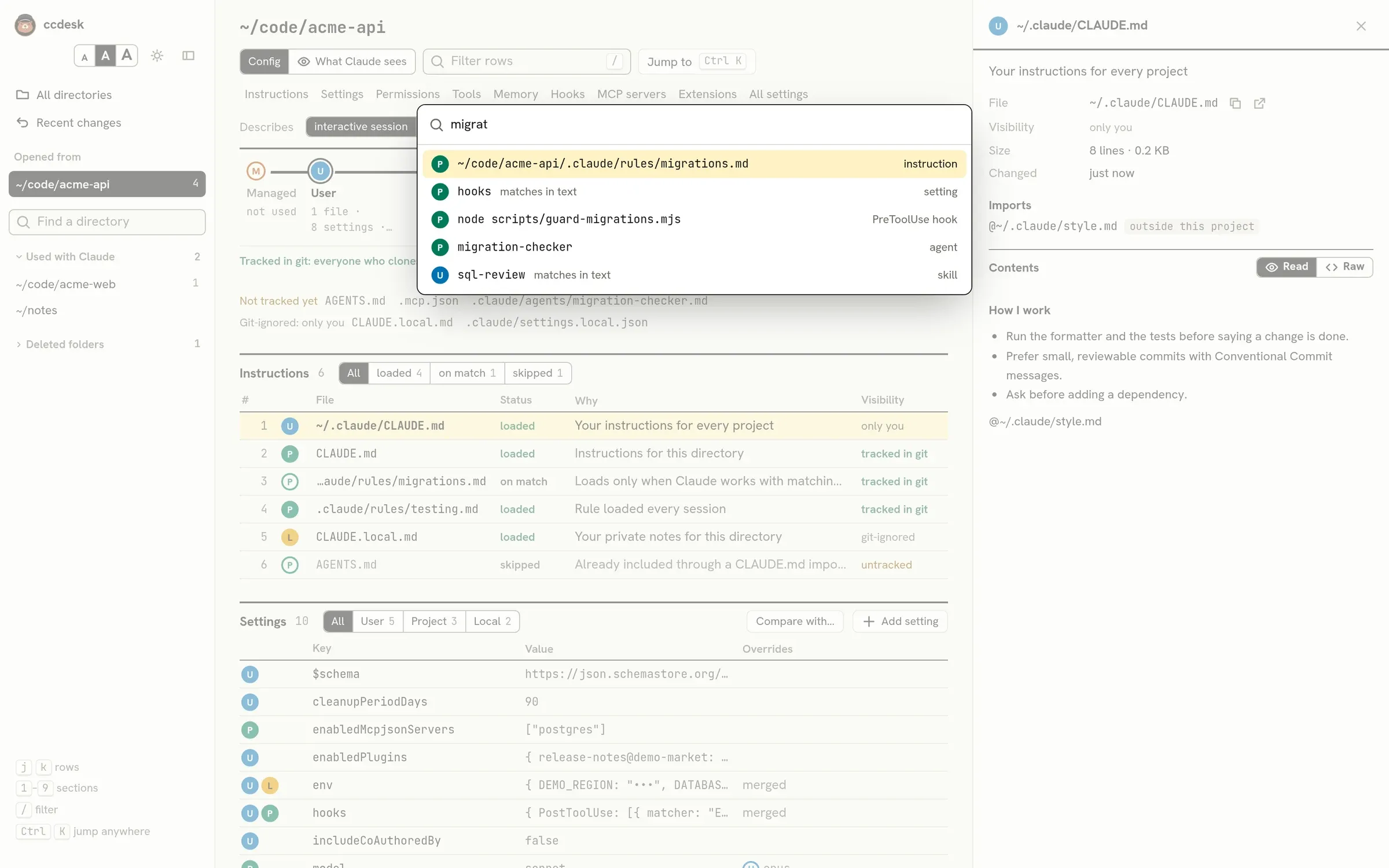
Section titled “Jump to anything”Ctrl+K (⌘+K on macOS) opens the command palette. Type to find a row on the current page (a file, a setting, a rule, a hook, a server), a memory saved for any directory, or a directory by its path.
Keyboard shortcuts
Section titled “Keyboard shortcuts”On a directory page (the rail lists these at the bottom on wide windows):
| Key | Action |
|---|---|
| j / k | Next / previous row, across sections |
| 1 to 9 | Jump to a section |
| / | Focus the row filter |
| Esc | Close the inspector or an add form and go back to the row you were on; in the filter box, clear it |
Everywhere:
| Key | Action |
|---|---|
| Ctrl+K / ⌘+K | Open or close the command palette |
| ↑ / ↓, Enter | Move through palette results and open one |
| Esc | Close the palette |
The single-key shortcuts do nothing while you are typing in a field. In What Claude sees, j, k and the number keys are off, / switches back to Config first, and Esc goes back to Config.
Theme and text size
Section titled “Theme and text size”ccdesk follows your system’s light or dark setting. The sun button at the top of the rail switches theme, and ccdesk remembers your choice in that browser.
On a wide window, the panel button beside it hides the rail, leaving a strip with the same button to bring it back, so a page with wide tables gets the room. Each group of directories in the rail folds on its own heading too, and a search in the rail shows its matches whether or not the list is folded. ccdesk remembers both.
The three A buttons beside it make the whole page smaller (90%), the default size, or larger (115%). ccdesk remembers that choice in the browser too.
The ccdesk logo at the top of the rail opens these docs in a new tab.
Narrow screens
Section titled “Narrow screens”On a phone-sized window the rail moves above the page, the route strip turns vertical, and each table keeps the columns that say whether a row is loaded and who sees it. The inspector still shows everything else for the row you pick.